How to use the database and recipe calculator
Search the nutritive values of Serbian foods and dishes, build your own recipes, and get their nutrition details and a label with a QR code.
Food database
The database holds more than 2,400 foods and dishes from Serbia and Balkan region with their nutritive values per 100 g, sorted into food groups. It is open for overview with registration.
Find a food
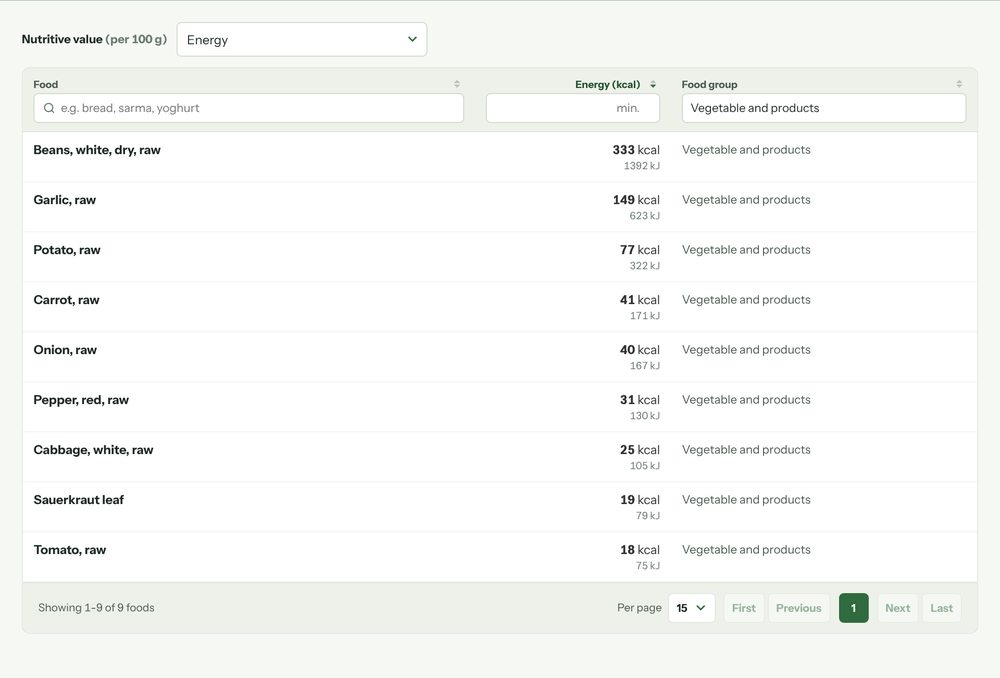
- Search: type in the box under Food. Results update as you type, and accents don’t matter: “cevapi” also finds “ćevapi”.
- Nutritive value: the menu above the table chooses which value the second column shows, e.g. vitamin C instead of energy. The list then shows only foods that contain it, highest first.
- Minimum value: the min. box under the value column hides foods below that number, e.g.
100for at least 100 kcal. - Food group: the menu under Food group limits the list to one group.
Sort and browse
Click a column heading to sort by it; click again to reverse. The footer shows how many foods match, lets you choose 15, 30, 45 or 60 rows per page, and moves between pages. The address in the browser keeps your search and filters, so you can bookmark or share it.
On a phone
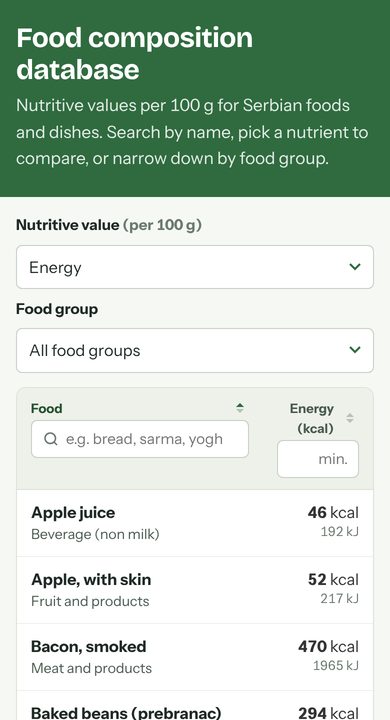
The food group is shown under each food name, and the food group filter moves above the table. Everything else works the same way.
Food details
Click a food to open its details on the right (full screen on a phone). You’ll find:
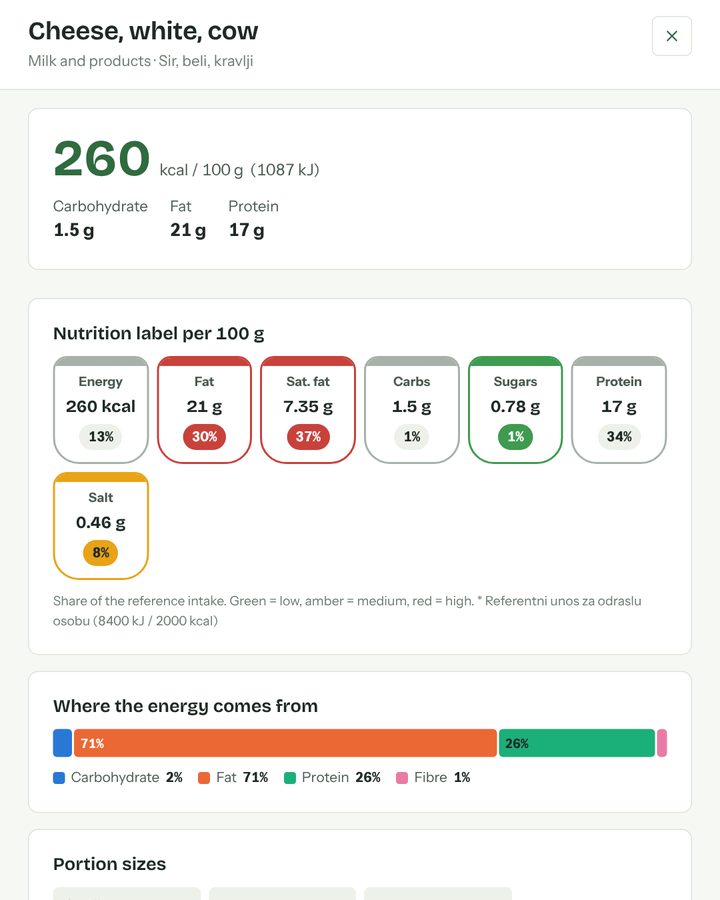
- Energy in kcal and kJ, and carbohydrate, fat and protein per 100 g.
- Nutrition label: the mandatory nutrients with their share of the daily reference intake. The colour shows whether the amount per 100 g is low, medium or high; grey means the nutrient has no limits.
- Where the energy comes from: carbohydrate, fat, protein, alcohol and fibre.
- Portion sizes: small, medium, large and extra-large portions in grams.
- Content per 100 g: all nutritive values, grouped (minerals, vitamins, fatty acids…).
Dishes
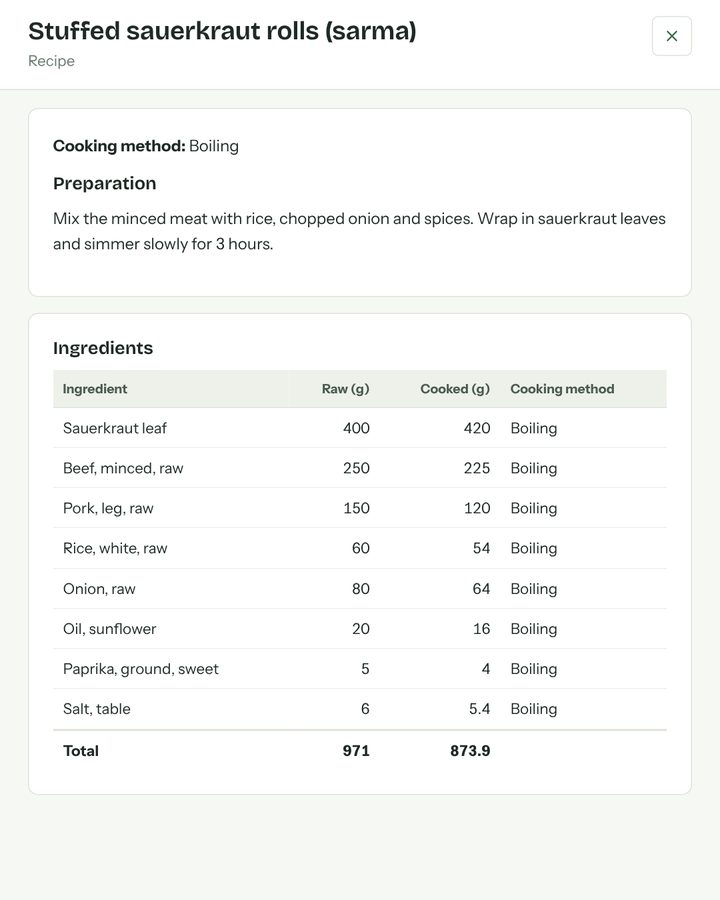
Prepared dishes have a Recipe mark next to their name. Click it to see how the dish is made: the cooking method, the preparation, and each ingredient’s raw and cooked amount. Cooking changes the weight, for example rice gains water while meat loses it.
Account and login
To build your own recipes you need a free account.
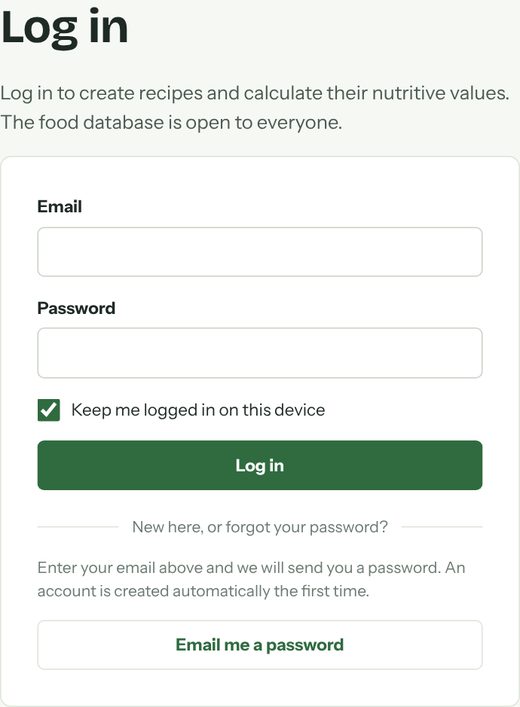
- Open Log in, type your email and choose Email me a password. The first time, this also creates your account.
- Copy the password from the email and log in. Tick Keep me logged in on your own device.
- Forgot the password? Use Email me a password again; the new one replaces the old one.
My recipes
My recipes shows all your recipes as cards, with energy, carbohydrate, fat and protein per portion.
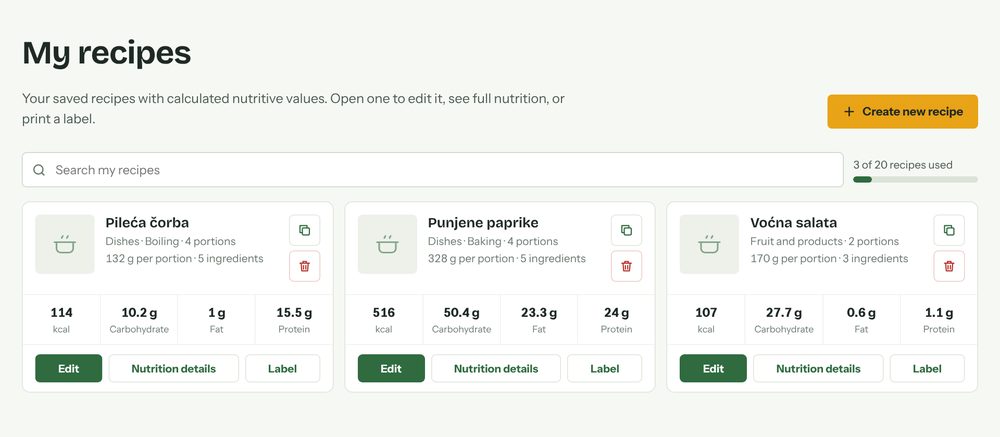
- Create new recipe starts an empty recipe. The bar next to the search shows how many recipes your account may have.
- Edit opens the recipe; Nutrition details and Label open its result pages.
- The copy icon makes a duplicate to vary a recipe without changing the original.
- The bin icon deletes a recipe. Its number is never used again, so a printed QR code of a deleted recipe can never show a different recipe.
Building a recipe
The editor has the ingredients and recipe details on the left and the live nutritive value on the right (below, on a phone).
-
Name the recipe
Type the name at the top. Want a head start? Open Start from an existing dish, look at a dish with Details, then choose Use this recipe to copy its ingredients and adjust them.
-
Find an ingredient
Type part of the name in Search ingredient. To compare foods before choosing, press Details next to a result: you’ll see its full nutritive value, and Add this food to the recipe picks it. Close the details and the results are still there for the next one.
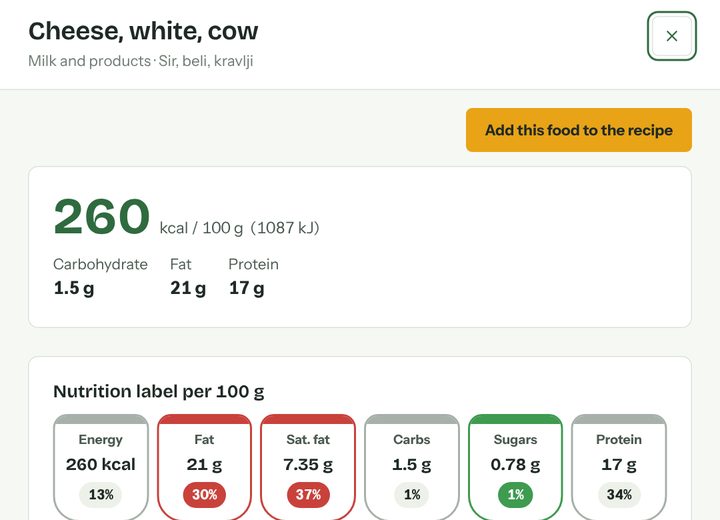
Checking a food before adding it Too many results? Open Limit to food groups below the search. Clear all and then ticking one or two groups is the quickest way; Select all brings every group back.
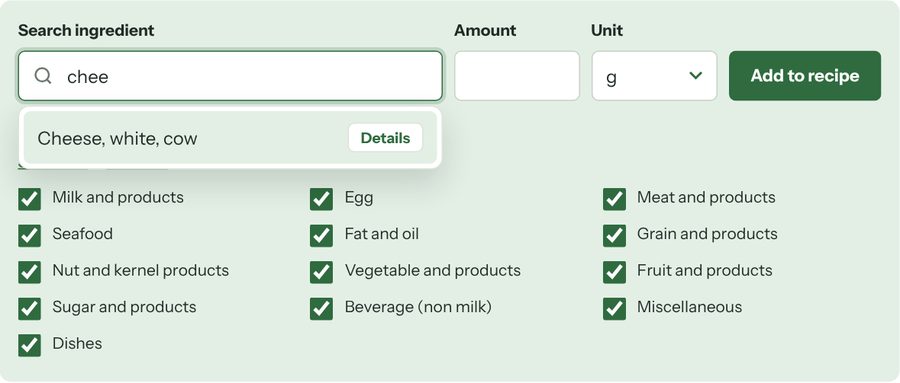
Search results, the Details button and the food group filter -
Enter the amount
Type the amount, choose the unit (grams, millilitres, spoons, cups…) and press Add to recipe or Enter. Units are converted to grams automatically.
-
Check the list
Each ingredient shows its raw and cooked weight. Click a name to see its nutritive values, the pencil to change the amount, the bin to remove it.
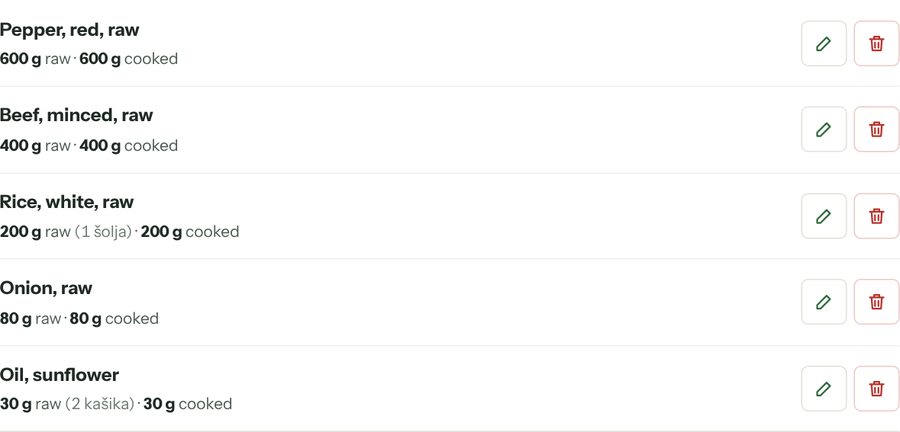
Ingredients with raw and cooked amounts -
Fill in the recipe details
Describe the preparation, choose the cooking method and food group, and set the number of portions (decimals are allowed, e.g. 2.5 for children’s portions). The cooking method matters: it sets how much weight each ingredient gains or loses and how many vitamins and minerals remain.
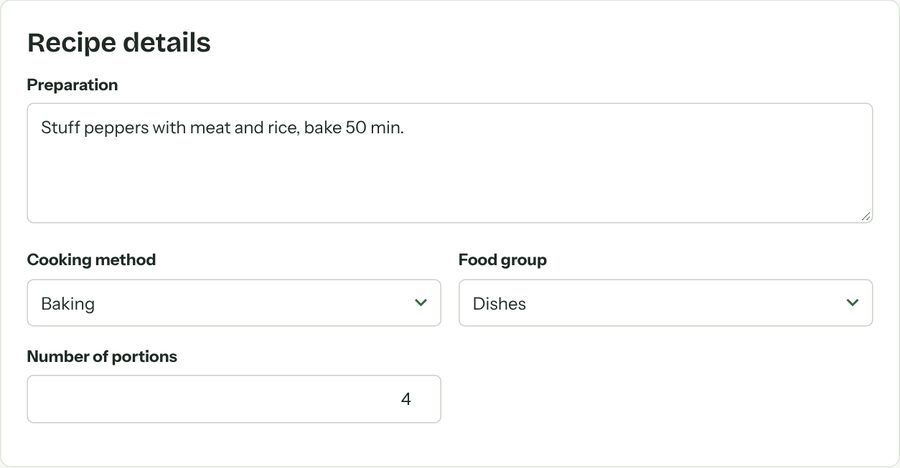
Preparation, cooking method, food group and portions -
Watch the nutritive value, add a photo and save
The panel updates with every change: energy, carbohydrate, fat and protein per portion and per 100 g, total raw and cooked weight, and portion size.
Nutrition details and Label open in a new tab and already include unsaved changes. Add a photo (JPG, PNG or WebP) under the panel.
Press Save recipe when you’re done. If you try to leave with unsaved changes, the site asks first.
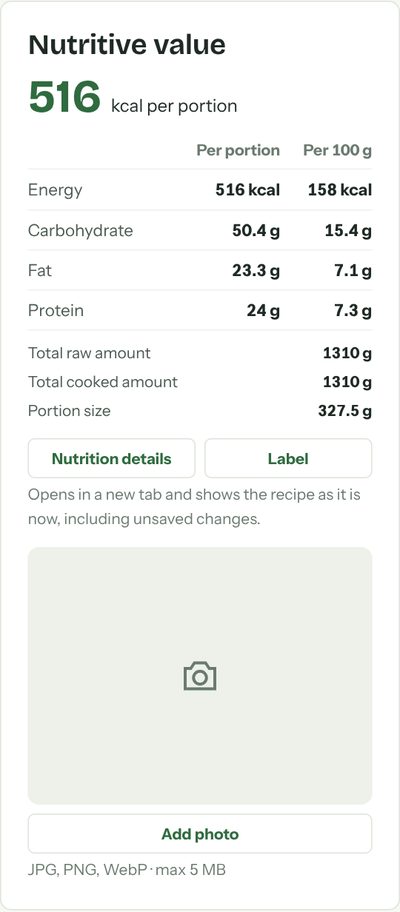
The live nutritive value panel
Nutrition details
This page shows the complete result of a recipe:
- food group, cooking method, number of portions and portion size, preparation and photo;
- every ingredient with its raw, cooked and per-portion amount;
- where the energy comes from (carbohydrate, fat, protein) and how much energy each food group contributes;
- all nutritive values for the whole recipe, per 100 g and per portion, next to the daily reference intake.
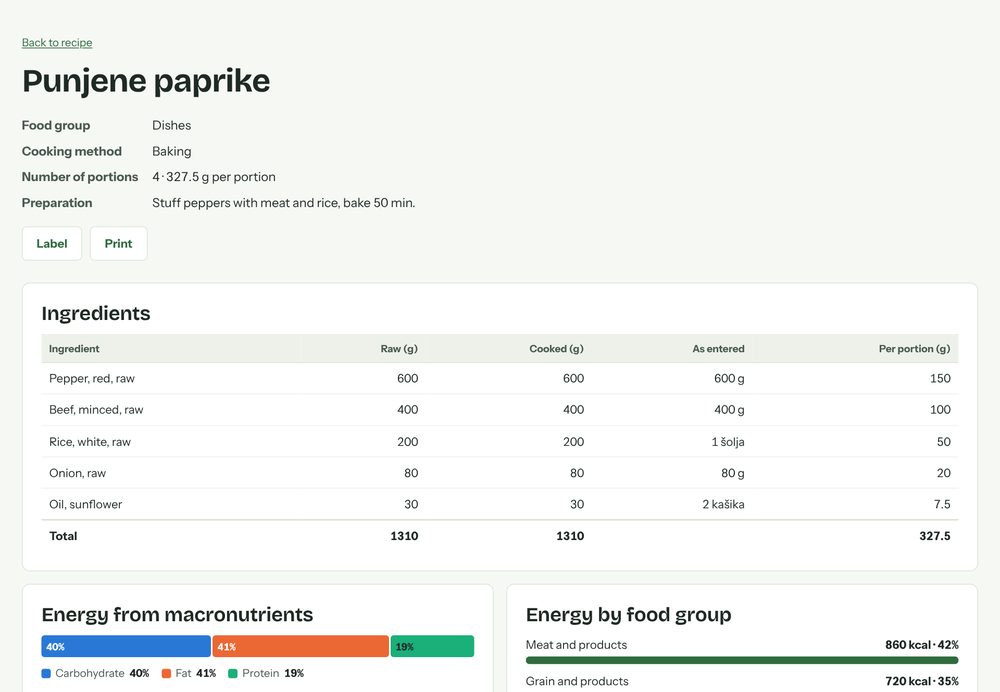
On a phone the tables turn into easy-to-read cards. Print produces a clean A4 page, or a PDF if you choose “Save as PDF”.
Label and QR code
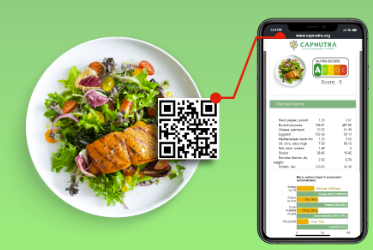
The label page has the short information needed for a product label: ingredients, preparation, the mandatory nutrients per 100 g and per portion with % of the reference intake, the coloured nutrition label and a QR code.

- Untick the parts you don’t need; they fade on screen and are left out of the print.
- Press Print and choose a printer, or “Save as PDF”.
- Scanning the QR code opens this recipe’s nutrition details on any phone, without logging in.
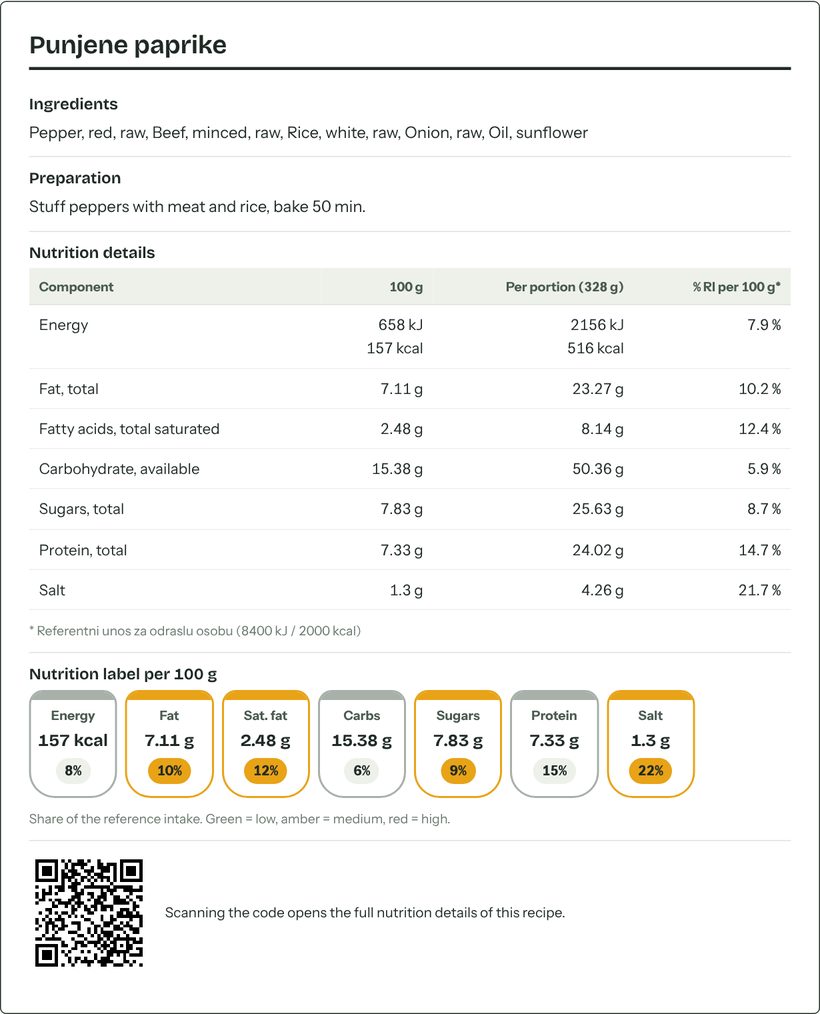
How it is calculated
- Units
- Amounts in spoons, cups, millilitres etc. are converted to grams with fixed factors for each unit.
- Cooked weight
- Each ingredient’s raw weight is changed by a yield factor for its food type and the recipe’s cooking method (rice and pasta gain water, meat loses it).
- Vitamins and minerals
- Retention factors for the food group and cooking method reduce vitamins and minerals that are partly lost when cooking.
- Per 100 g
- Totals are divided by the cooked weight of the whole recipe; per portion divides them by the number of portions.
- Energy
- kJ = kcal × 4.18. The energy split uses 4 kcal/g for carbohydrate and protein, 9 for fat, 7 for alcohol and 2 for fibre.
- Label colours
- Compare the amount per 100 g with the low and high limits of the reference values (Serbian regulation on nutrition labelling).
The CapNutra team wishes you happy cooking!